Understanding Email Unsubscribe Link Options in WeGive
Last updated: August 18, 2026
WeGive offers three different unsubscribe/preference link options you can include in your emails. Each serves a different purpose depending on how much control you want to give recipients over their communication preferences. These links work the same way regardless of which email builder you use (Beefree or the classic editor).
Note: WeGive has transitioned from Stripo to Beefree for new email templates. Existing templates built in Stripo will continue to work, but all new templates should be created in Beefree.
The Three Unsubscribe Link Types
1. Un-Authed Link (Subscription Preferences)
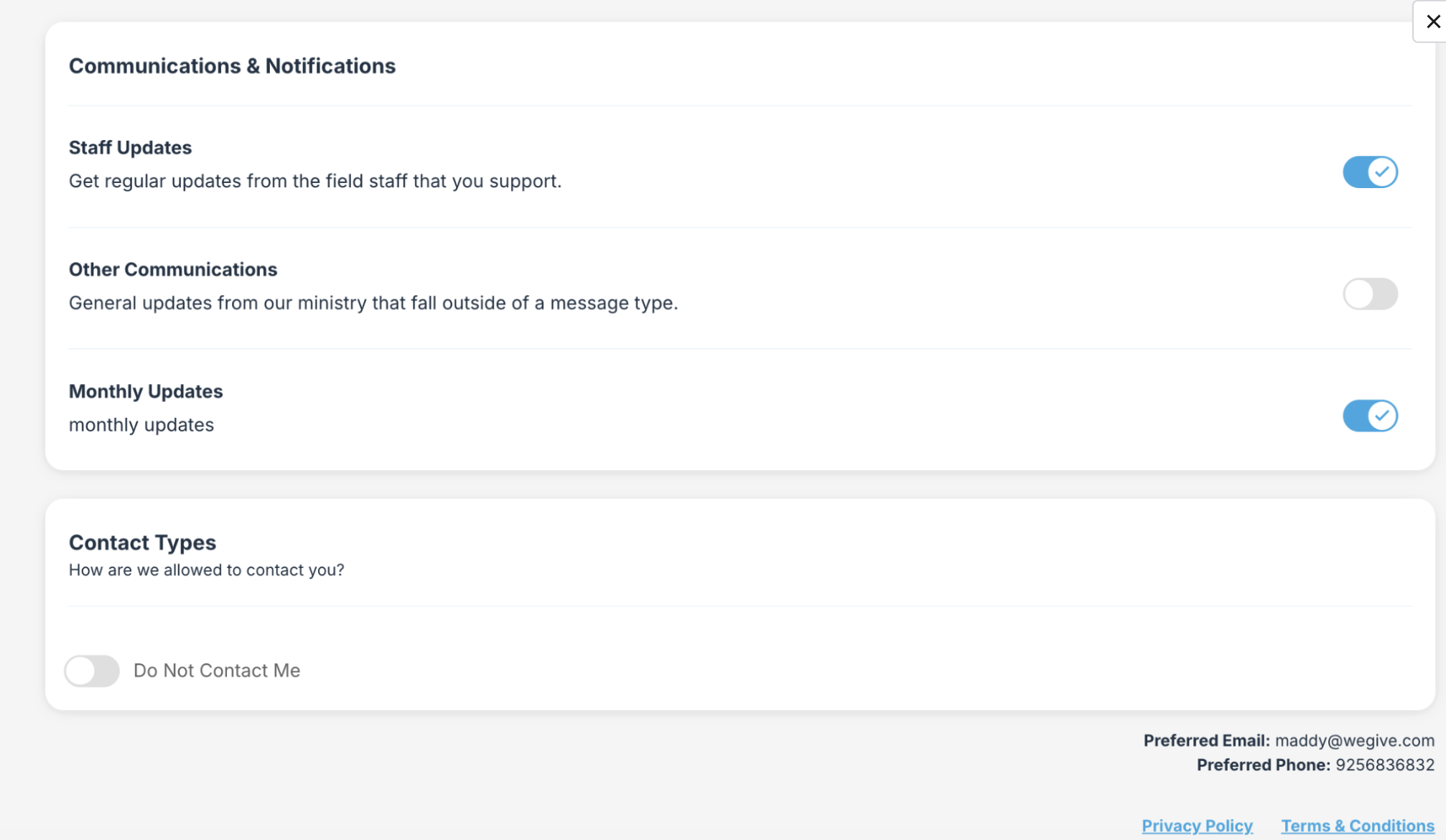
This link opens your organization's full preference center — including all message types and contact type settings — with no login required. The link automatically identifies the recipient. From this page, a recipient can:
Toggle individual message types on or off
Unsubscribe from all lists
Set themselves to "Do Not Contact"
Important distinction: Unsubscribing from all lists stops list-based communications, while "Do Not Contact" suppresses all marketing outreach entirely.
2. Pre-Auth Link (Settings)
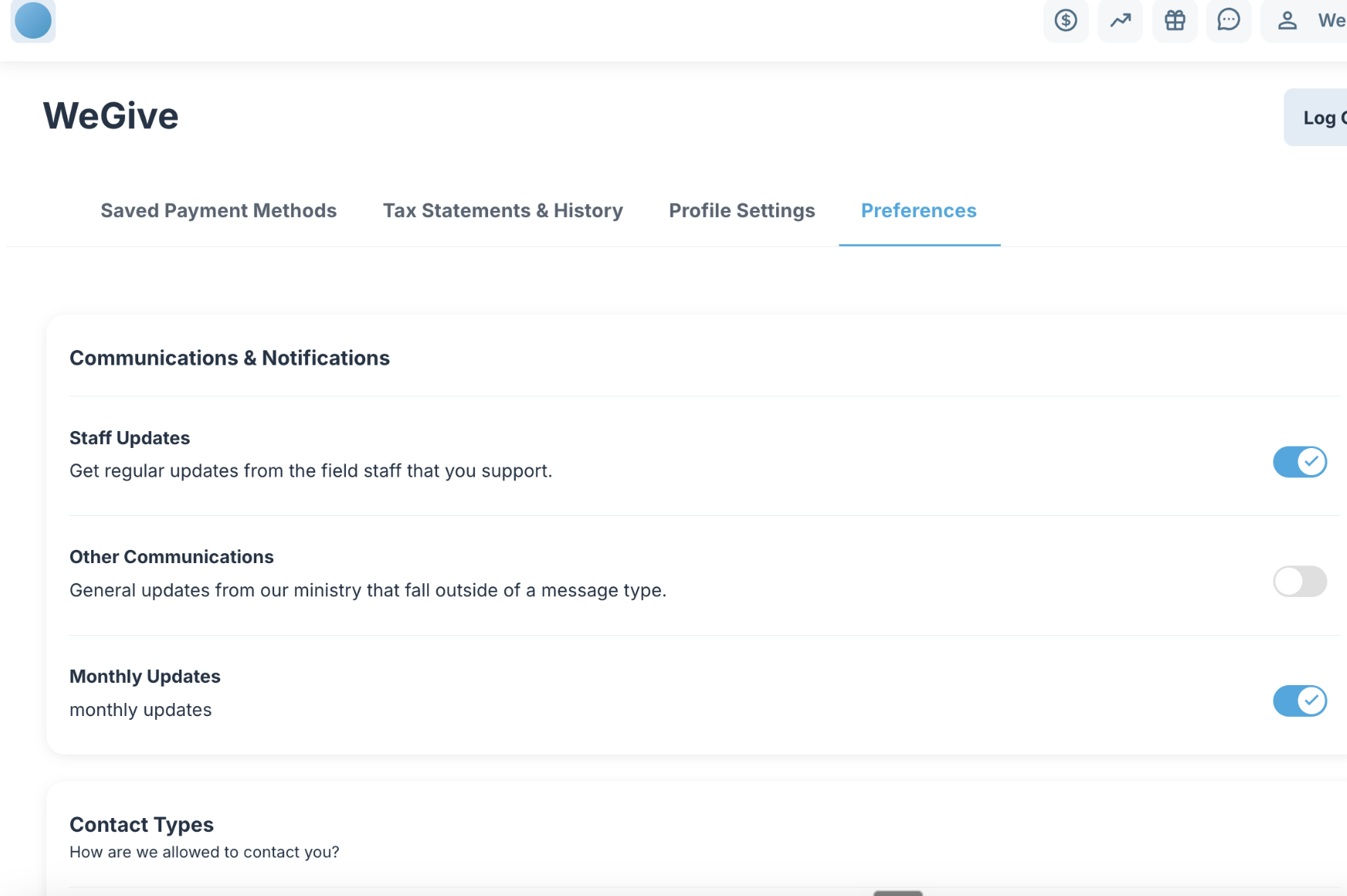
This link takes the supporter directly to the Donor Portal Subscription preferences page. If the supporter is already logged in, they land directly on the portal page. If not, they are prompted to log in first and are then redirected to the preferences page.
3. Unsubscribe Link
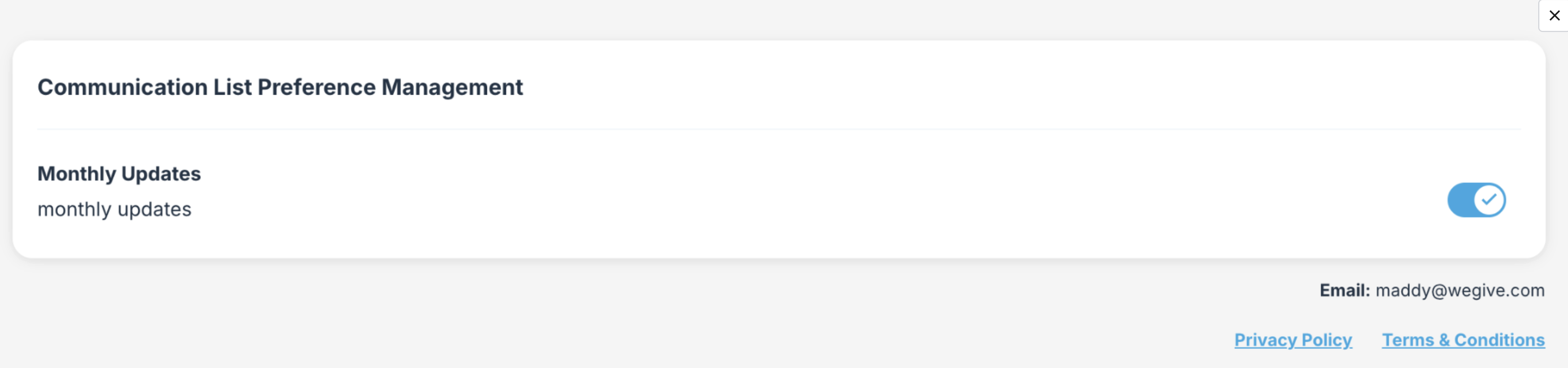
This opens a simplified page showing only the specific communication list the email was sent from. The recipient can opt out of just that single list without affecting any other preferences. No login is required.
How Merge Tags Work
Merge tags for unsubscribe links are filled in at the time the email is actually sent, not when the template is built. This means the links will work correctly regardless of which editor you used to create the template. The only difference between editors is where you find the merge tags within each editor's UI.