When Donors Migrate via the Semi-Automated Approach (No Token Transfer)
Last updated: August 31, 2026
With the semi-automated migration approach, recurring plans are brought into WeGive with their schedule and amount details intact, but without a transferred payment token. This means each plan arrives with a "missing" payment method status. Donors need to log into their donor portal and add a payment method themselves to activate their recurring giving.
What to tell your donors:
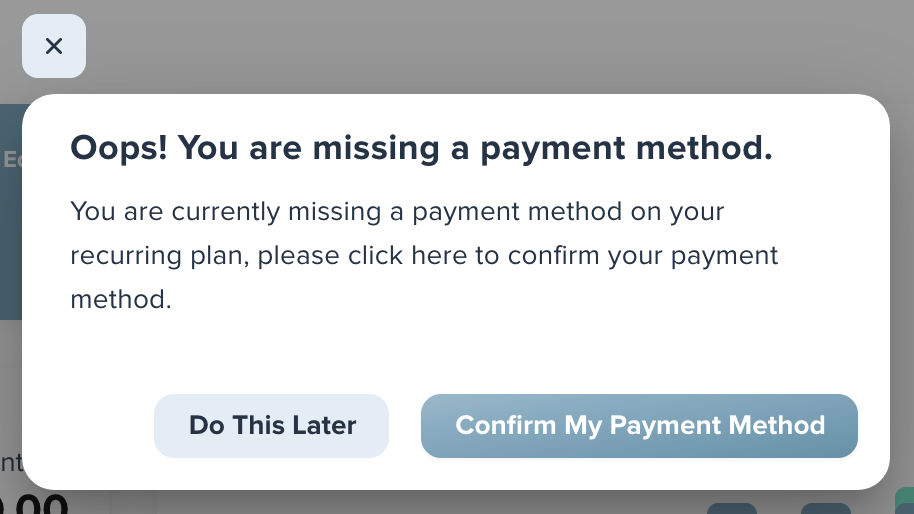
Log into your donor portal — Go to your organization's giving portal (your org will provide the link) and sign in with your email and password. When you log in, you should see a notification letting you know that your recurring plan needs a payment method. If you don't see it, that's okay — just head to the next step.
Go to Recurring Giving — Find the Recurring Giving section on your portal dashboard.
Click "Edit" — In the Recurring Giving box, click Edit, then select the recurring plan you'd like to activate.
Click "Edit" again — This opens the plan details where you can add your payment information.
Add your payment method — Click on the Card or Bank option under Payment Method, then select "Add New." Enter either your card details (card number, name, CVV, postal code, expiry) or bank details (routing number and account number).
Review and Confirm — Click "Review" to verify everything looks correct, then "Confirm" to save.
Important notes to communicate to donors:
Their recurring plan will begin processing automatically on the next scheduled charge date once a payment method is added. It will not retroactively charge for any missed payments.
Their giving history, schedule, and amount have already been carried over — they just need to provide a payment method to resume automatic processing.
If they have any trouble, they should reach out to your organization's support team for help.
Example Email for Clients to Send to Recurring Donors:
Subject: Action Needed: Update Your Recurring Gift
Hi [First Name],
We've recently upgraded our giving platform to better serve you, and your recurring gift of [amount]/[frequency] has already been carried over — thank you for your continued generosity!
To keep your recurring gift active, we just need you to log in and add a payment method. Your gift details (amount, schedule, and history) are all saved and ready to go. Here's how:
Log in to your donor portal at [Portal URL]
Go to the Recurring Giving section
Click "Edit" and select your recurring plan
Click "Edit" again to open your plan details
Under Payment Method, click Card or Bank, then select "Add New"
Enter your payment details and click "Review," then "Confirm"
That's it! Once your payment method is saved, your recurring gift will resume on your next scheduled date. You will not be charged for any missed gifts during the transition.
If you have any questions or need help, don't hesitate to reach out to us at [Support Email/Phone].
Thank you for your partnership and generosity!
[Organization Name]
Donor Facing Instructions
How to Activate Your Recurring Gift
We've recently upgraded our giving platform to make managing your generosity easier than ever. Your recurring gift details — including your amount, schedule, and giving history — have already been transferred. To keep your gift active, you just need to log in and add a payment method. It only takes a minute.
Step 1: Log In to Your Donor Portal
Visit your organization's giving portal and sign in with your email and password. If this is your first time logging in, you may need to create a password using the email associated with your donor account.
Step 2: Look for the Payment Method Notification
When you log in, you may see a popup letting you know your recurring gift needs a payment method. If you don't see it, no worries — just follow the steps below.
Step 3: Go to Recurring Giving
From your dashboard, find the Recurring Giving section. You'll see your existing recurring gift listed with its amount and schedule.
Step 4: Open Your Plan for Editing
Click "Edit" in the Recurring Giving box, then select your recurring plan. Click "Edit" one more time to open your plan de
tails.
Step 5: Add Your Payment Method
Under Payment Method, click "Card" or "Bank," then select "Add New." Enter your details:
Card: card number, name on card, CVV, postal code, and expiration date
Bank account: routing number and account number
Step 6: Review and Confirm
Click "Review" to make sure everything looks right, then click "Confirm" to save.
Frequently Asked Questions
Will I be charged for missed gifts during the transition? No. Your recurring gift will resume on its next scheduled date. You will not be charged retroactively for any gifts that were paused during the transition.
Can I update my gift amount or frequency while I'm in there? Yes! While editing your plan, you can also adjust your gift amount, frequency, or other details.
What if I can't log in or need help? Reach out to your organization's support team — they'll be happy to help you get set up.